
Screenshots


App details
- Version
- 2.0.2 | 2.0.1 | 1.0.9 | 1.0.8 | 1.0.7 |...
- Size
- 11.42 MB
- Updated
- July 11, 2023
- Requires
- Windows 8.1
- Language
- English
- License
- Free
- Developer
- zpn-apps
- Category
- Windows OS
SoftPas in:
This product is also available in the following languages:
About ZPN Connect
Download ZPN Connect – Free Secure VPN for Windows, macOS, Android & iOS
Overview of ZPN Connect
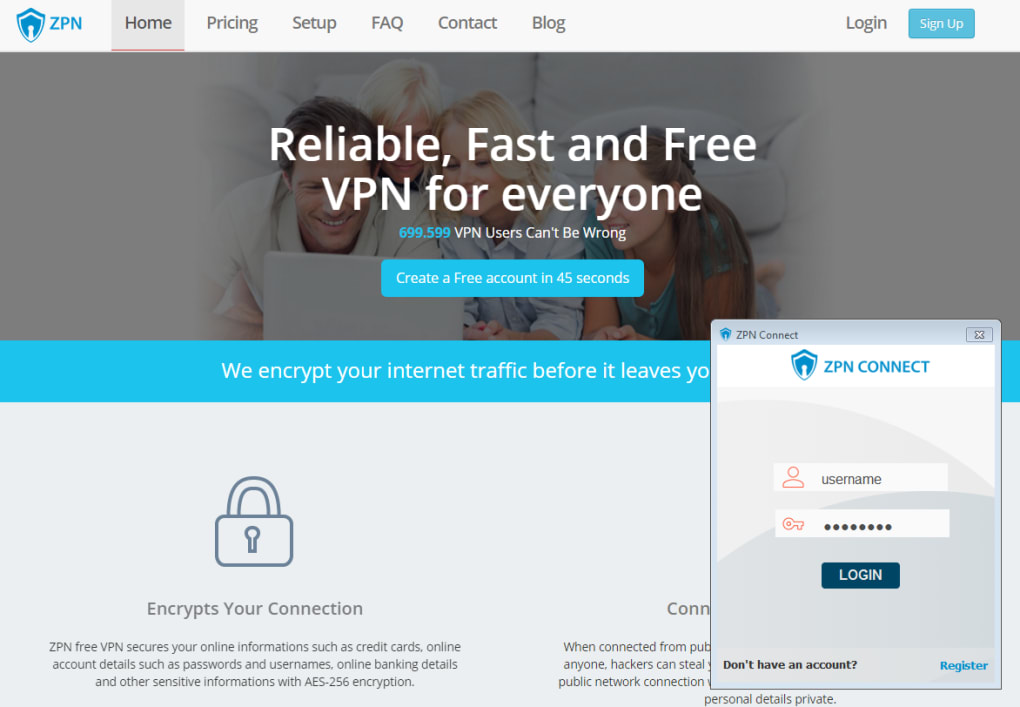
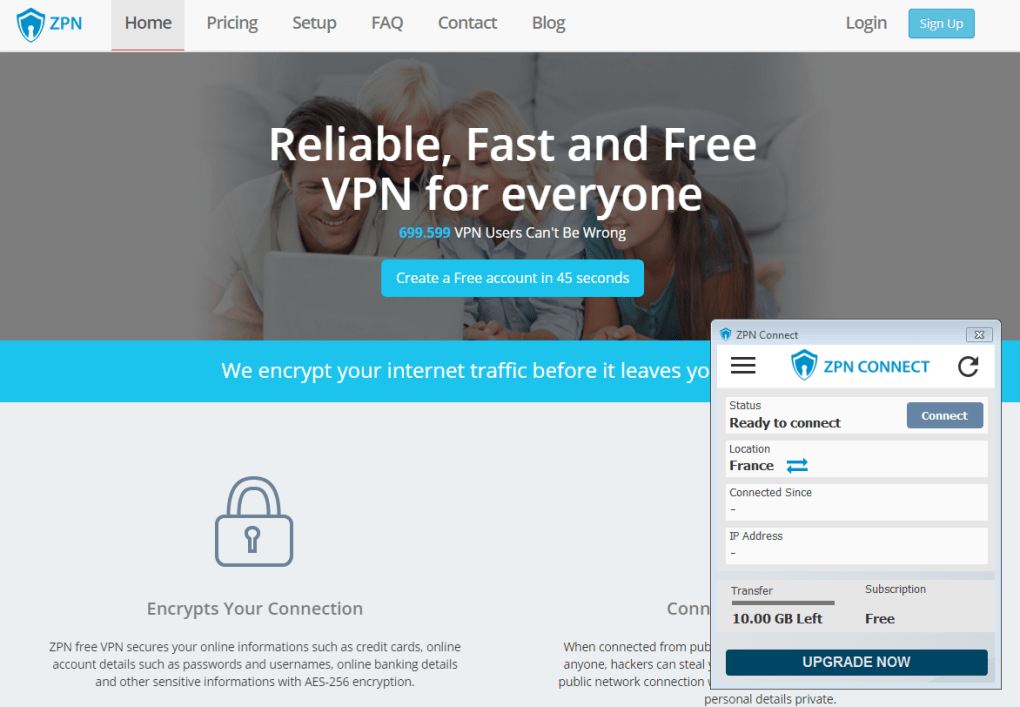
ZPN Connect is a lightweight, free VPN client that lets you surf the web securely, even when you’re connected to untrusted networks such as public Wi‑Fi hotspots. Built as the official client for ZPN’s VPN service, the app offers both free and premium server options, allowing you to bypass corporate, educational, or governmental content blocks with a single click. While the graphical interface is intentionally minimal—showing connection statistics, server location, and basic toggles—it packs enough functionality for users who need a reliable privacy layer without the bloat of larger VPN suites.
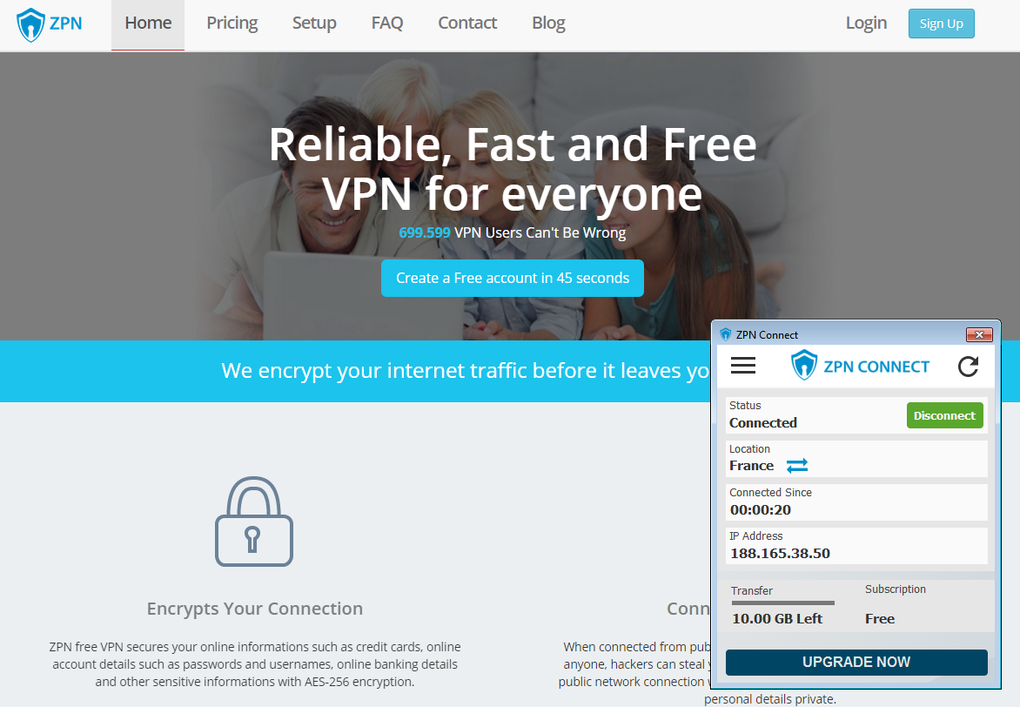
The client focuses on simplicity: you select a server, hit “Connect,” and the software establishes an encrypted tunnel using industry‑standard protocols. Once active, all outbound traffic is routed through ZPN’s servers, masking your IP address and encrypting data packets. This protects credentials, browsing habits, and any other sensitive information from prying eyes on the same network. As with most VPN solutions, you may notice a modest dip in raw connection speed, but the trade‑off is worthwhile for the added privacy and the ability to reach geo‑restricted content.
One quirk worth noting is that configuration changes (e.g., switching protocols or adjusting DNS settings) only take effect after you restart the application. This design choice keeps the client stable but requires a brief reboot whenever you tweak advanced options. Overall, ZPN Connect is a solid choice for users who value a straightforward, no‑frills VPN experience and are comfortable navigating a few basic menus.
Key Features that Make ZPN Connect Stand Out
- Free Tier Access: Connect to a limited set of servers at no cost, perfect for casual browsing and occasional public‑Wi‑Fi use.
- Premium Server Options: Upgrade within the same client to access high‑speed, low‑latency servers across multiple continents.
- One‑Click Connection: Simple UI lets you connect or disconnect with a single button press, ideal for users who dislike complex setups.
- Real‑Time Statistics Panel: Instantly view your current IP address, server location, latency, and data usage without leaving the main window.
- Automatic Kill Switch: If the VPN drops unexpectedly, network traffic is halted to prevent accidental data leakage.
- DNS Leak Protection: Ensures that DNS queries are routed through the VPN tunnel, keeping your browsing queries private.
- Cross‑Platform Support: Available for Windows 10/11, macOS 10.13+, Android 6.0+, and iOS 12+, covering the majority of consumer devices.
- Split Tunneling (Premium Only): Choose which apps bypass the VPN, useful for streaming services that block VPN traffic.
- Server Switching without Re‑Login: Change your server location on the fly; the client reconnects automatically.
- Secure Protocols: Supports OpenVPN (UDP/TCP) and IKEv2, giving you flexibility based on speed or stability needs.
These features collectively deliver a balanced mix of privacy, convenience, and performance. While the free tier is intentionally limited to encourage upgrades, it still offers enough servers for most everyday tasks, such as checking email on a coffee‑shop network or accessing region‑locked news sites. Premium users benefit from dedicated bandwidth, faster handshakes, and advanced tools like split tunneling that are typically reserved for enterprise‑grade VPNs.
Another notable aspect is the client’s low system footprint. ZPN Connect runs quietly in the background, consuming less than 30 MB of RAM on Windows and macOS, and it does not spawn multiple processes that could degrade battery life on mobile devices. This efficiency, paired with the automatic kill switch, makes it an appealing choice for travelers who need reliable protection without draining their device’s resources.
Installation, Setup, and Daily Use Guide
Step‑by‑Step Installation
Getting ZPN Connect up and running is straightforward across all supported platforms. Follow these steps for a hassle‑free installation:
- Download the Installer: Visit the official ZPN website and click the “Download ZPN Connect” button that matches your operating system (Windows, macOS, Android, or iOS).
- Run the Installer (Desktop): On Windows, double‑click the .exe file; on macOS, open the .dmg and drag the app to your Applications folder. macOS may prompt you to allow the app from “identified developers” – grant permission in System Preferences → Security & Privacy.
- Mobile Installation: For Android, open the downloaded .apk and enable “Install unknown apps” for the browser if needed. For iOS, you’ll be redirected to the App Store where you can install with a single tap.
- Create or Log In to Your ZPN Account: The first launch asks you to sign in or create a free account. Account creation only requires an email address and a password; verification is immediate.
- Grant VPN Permissions: Both desktop and mobile versions will request permission to configure a VPN connection. Accept the prompt; without this, the client cannot route traffic through the encrypted tunnel.
Configuring Your First Connection
After installation, the main dashboard displays a list of available servers. The free tier highlights servers with a green “Free” badge. Choose a location, click “Connect,” and watch the status bar turn green, indicating an active encrypted tunnel. For users who wish to fine‑tune settings, click the gear icon to access the options menu. Here you can switch between OpenVPN and IKEv2, enable the kill switch, or configure DNS servers.
Remember that any changes made in the settings panel require a client restart. Simply close the app completely (right‑click the tray icon on Windows and select “Exit”) and relaunch it to apply the new configuration. This behavior is designed to keep the connection stable and avoid mid‑session disruptions.
Everyday Usage Tips
- Auto‑Connect on Startup: Enable this in the Settings tab to have ZPN Connect launch and connect automatically whenever you power on your device.
- Check for Updates Regularly: The client checks for updates on launch, but you can manually trigger a check from the “About” section to ensure you have the latest security patches.
- Use Split Tunneling (Premium): If you stream a geo‑blocked video, add your streaming app to the split‑tunnel list so it routes through the VPN while other apps use your regular ISP.
- Monitor Data Usage: The stats panel shows real‑time upload/download numbers; keep an eye on them if you’re on a limited mobile plan.
By following these steps, most users will be protected within minutes and can enjoy a seamless, secure browsing experience wherever they go.
Compatibility, Pros & Cons, and Frequently Asked Questions
Supported Operating Systems
ZPN Connect runs natively on Windows 10/11, macOS 10.13 and later, Android 6.0 and newer, as well as iOS 12 and later. The client automatically detects the best protocol for the host OS, ensuring optimal performance without manual tweaks. For older versions of Windows (e.g., Windows 7), the software will install but some advanced features—like the kill switch—may be limited.
Pros and Cons
- Pros:
- Free tier available with no hidden fees.
- Simple one‑click interface suitable for beginners.
- Automatic kill switch protects against accidental leaks.
- Low memory footprint; runs quietly in the background.
- Cross‑platform support covers the majority of consumer devices.
- Secure protocols (OpenVPN, IKEv2) and DNS leak protection.
- Cons:
- Configuration changes require a full client restart.
- Limited in‑app help documentation; new VPN users may need external guides.
- Free servers can be crowded, leading to occasional speed throttling.
- No built‑in ad blocker or malware protection features.
- Advanced features (split tunneling, dedicated IP) are locked behind a paid plan.
FAQ – Your Questions Answered
Is ZPN Connect really free?
Yes, ZPN Connect offers a completely free tier that lets you connect to a limited pool of servers. The free plan is ideal for casual browsing, while premium options unlock faster servers and extra features.
Can I use ZPN Connect on multiple devices with one account?
Absolutely. A single ZPN account can be used on up to five devices simultaneously, covering Windows, macOS, Android, and iOS platforms.
Does the VPN slow down my internet speed?
All VPNs introduce a slight latency due to encryption and routing. In most real‑world scenarios, ZPN Connect reduces speed by 5‑15 %, which is typical for a secure tunnel. Premium servers often mitigate this slowdown.
Is my data logged or sold to third parties?
ZPN’s privacy policy states that they retain minimal connection logs (timestamp, bandwidth usage) for troubleshooting only, and they never sell browsing data to advertisers.
How do I enable the kill switch on my device?
Open the Settings menu, locate the “Kill Switch” toggle, and turn it on. The feature activates automatically each time you connect to a VPN server.
Conclusion – Should You Download ZPN Connect?
In the crowded VPN market, ZPN Connect distinguishes itself with a clean, no‑nonsense interface and a genuinely free tier that works across all major platforms. If you need a reliable way to protect your data on public Wi‑Fi, bypass simple content blocks, and you don’t require an extensive knowledge base or bundled security tools, ZPN Connect is a solid pick. The trade‑offs—such as the need to restart after setting changes and a modest learning curve for advanced features—are outweighed by its stability, low resource usage, and cross‑device flexibility.
For power users or those seeking integrated ad‑blocking and malware protection, a more feature‑rich VPN might be preferable. However, for most everyday internet users who value privacy without the clutter of a massive UI, ZPN Connect delivers exactly what it promises: secure, straightforward, and free connectivity.
Ready to protect your online life? Download ZPN Connect now and enjoy instant, encrypted browsing on any device.
Overall Rating: 4/5
Guides & Tutorials
How to install ZPN Connect
- Click the Download button above.
- Once redirected, accept the terms and click Install.
- Wait for the ZPN Connect download to finish on your device.
How to use ZPN Connect
This software is primarily used for its core features described above. Open the app after installation to explore its capabilities.
User Reviews
No reviews yet. Be the first to share your experience.
You may also like
more
Llama 2
Free-to-use large language model As the new addition to Meta’s arsenal of langua...

NotebookLM
Revolutionizing the note-taking and idea-generation process NotebookLM is an exp...

Github co pilot
AI-inspired software development and coding platform GitHub Copilot is a browser...

Google Gemma
Google’s lightweight AI models Introducing Google Gemma , a family of cutting-ed...

AI Image Enlarger
A free app for Windows, by ai-image-larger. AI Image Enlarger is a free software...

DALL E
AI-driven text-to-image transformation engine DALL·E is a free graphic and desig...